Exploring Your Zednet Site
Usually the first thing you'll want to do with your Zednet site is check out all the features to make sure they work the way you want. In most cases, Zednet's groundbreaking software will already be installed for you, and running it requires you only to visit your Admin page and enter your company address.
Zednet Admin Menu
The Zednet eShowcase Admin Menu is the 'control centre' of your online site, and it is from this control centre that you manage and customize your Zednet site.
To access your Zednet Admin Menu, you need to be on the Internet, and you need to enter the following Internet address in your Internet browser:
http://www.zednet.co.uk/yourfolder/admin.html
In the above address, substitute your folder name for 'yourfolder'. (You should have received email from us giving your folder name.)
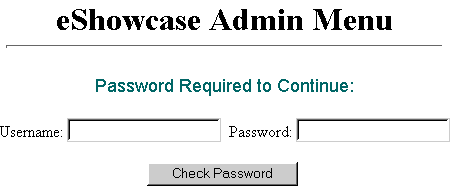
If you do this correctly, you will see the following screen.
When you see the password screen, enter the following passwords (use these until you change them):
Username test
Password: test
Click the 'Check Password' button, and you should see the eShowcase Admin Menu screen.
eShowcase Admin Menu Screen
The Zednet eShowcase Admin Menu screen is the heart of your new site. From here, you can add product listings, remove listings, edit listings, change your password, change the way your Zednet site looks and operates, and view all your products as your customers would view them.
The Zednet eShowcase Admin Menu looks like this:
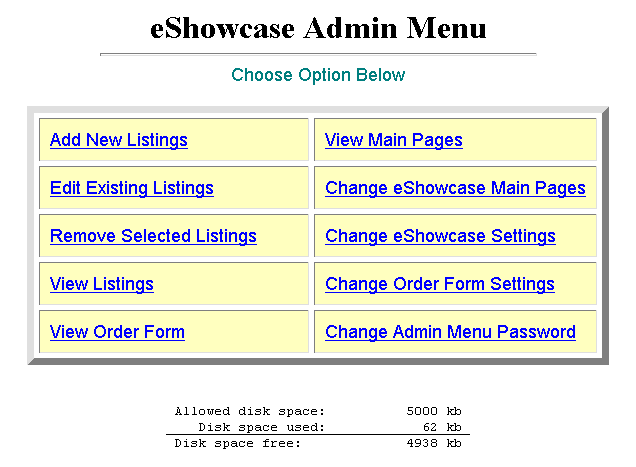
By simply clicking on a menu selection, you can quickly perform the procedure of your choice.
From this menu screen, you have complete control over all the functions of your Zednet site. In fact, with your password you can make changes to your Zednet site from any computer in the world.
For security reasons, it is a good idea to not share your password with anyone. And it is also a good idea to change your password regularly. (Especially if you ever let anyone else access your Zednet main menu!)
Note: It's a good idea to bookmark the Zednet password screen - this makes it easy to find and run your Zednet site.
Admin Menu Options
The Zednet Admin Menu provides easy access to all the features of the program. To activate any menu selection, you simply click on it.
You can test the menu features at any time. But before you let others see your site, you'll probably want to customize your Zednet site to reflect your own business.
In the next two chapters - 'Change Zednet Settings', and 'Change Order Form Settings', you'll see how to do that.